Risk Management Tool for Prop Trading Firms: Protect a Funded Account When Discipline Fails
Risk Management Tool for Prop Trading Firms: Protect a Funded Account When Discipline Fails
Навігація
In funded futures trading, one bad decision can matter more than ten good trades. An oversized position, a revenge trade after a loss, or one more entry near the daily limit can turn a manageable session into a failed evaluation or a lost funded account.
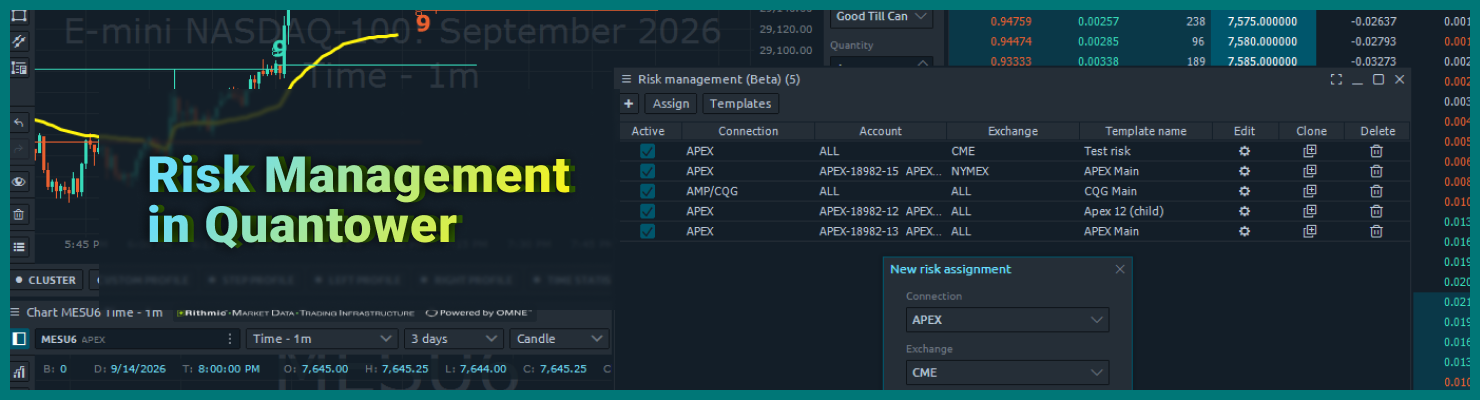
Quantower's Risk Management panel adds an enforcement layer between your trading plan and your execution. You define the limits before the session starts, assign them to an account, and Quantower checks them while you trade.
Some limits can prevent excessive exposure before it happens. Others monitor P&L, balance, equity, trading time, and account state and react when a configured threshold is reached.
Why funded traders break their risk limits
A futures strategy can have a real edge and still fail under poor risk control. That's especially true in ES, NQ, MES and MNQ, where exposure builds fast and a few impulsive decisions can burn through the available drawdown before you've got what happened.
The sequence is always the same. A trade loses, you re-enter too quickly, size creeps up, and the next trade is about winning the money back rather than the setup — until a daily loss, drawdown, or position-size rule gets crossed and the account is gone.
Knowing the rule was never the hard part. Prop firms enforce some mix of loss thresholds, drawdown rules, contract limits, and trading-hour restrictions — but the exact method differs by firm and account type. A drawdown might be static, trailing, intraday, or recalculated at the close; a daily loss might or might not count unrealized P&L, commissions and fees. So build your controls around the rules of your specific account, not a generic template.
Why discipline alone is not enough
Manual discipline matters. But it has one obvious weakness: it depends on you making the right call at the exact moment emotions are most likely to get in the way.
Some platforms answer this with a manual lockout — you decide it's time to stop and press the button to lock yourself out. That can be useful, but it still needs a decision.
Event-driven risk management solves a different problem: instead of waiting for you to decide that enough is enough, the platform reacts when a predefined condition is reached. That is the role of Quantower's Risk Management panel. You don't have to remember a risk rule in the middle of a fast market. You define the rule while you're clear-headed, and Quantower evaluates it while you trade.
What the Quantower Risk Management panel does
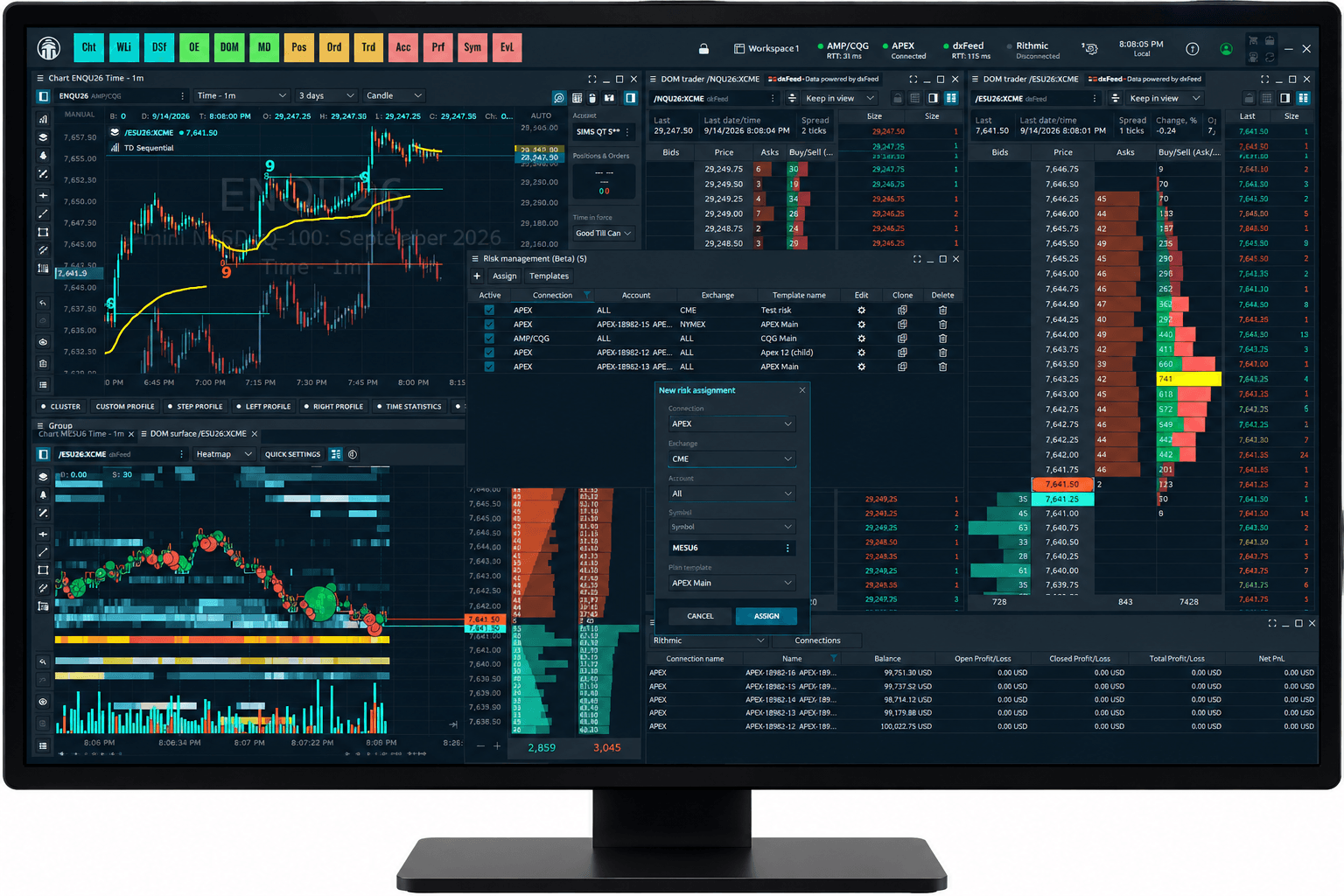
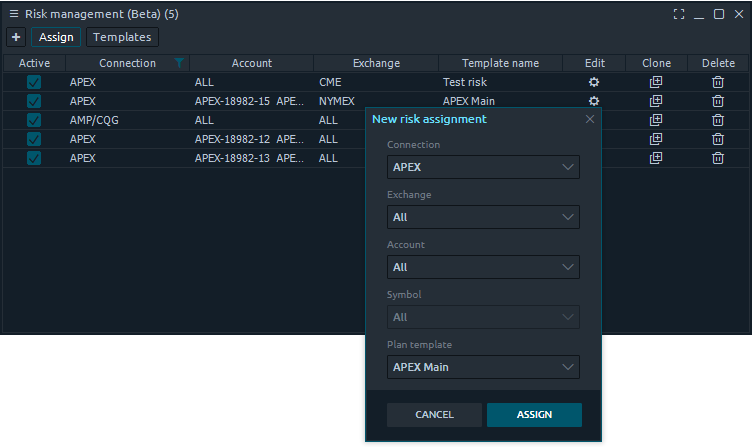
You'll find it under Control Center → Misc category → Risk Management. You create a risk plan template, configure the limits you want to use, and then assign that template to the required connection, account, exchange, or symbol scope.
Only enabled rules are active, so a template can contain several controls while using only the ones relevant to a particular trading setup.
The limits you can set
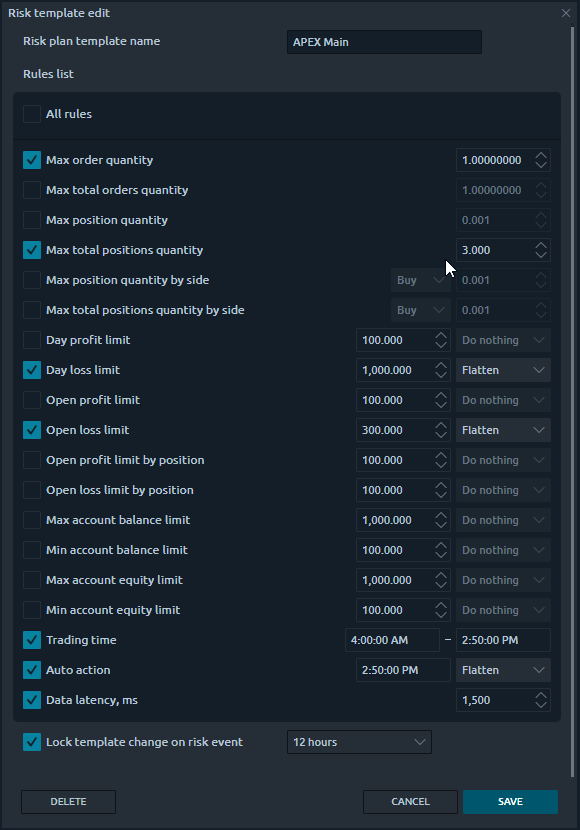
The rules split two ways by how they act. Preventive limits (order and position size) reject an order as you place it, before the exposure exists. Reactive limits (P&L, balance, equity) monitor the account and fire an action once a threshold is reached. The available rules can be grouped into three practical categories.
Order and position limits guard against oversizing. Cap order and position quantity, and an oversized order won't create a position beyond your limit — useful because the firm sets a maximum contract count you don't want to check by hand mid-session.
P&L limits monitor profit and loss during the trading session. A Day Loss Limit gives you a session-level protection threshold; a Day Profit Limit can stop you after a target has been reached; open P&L rules watch unrealized profit or loss, per position or across all of them.
One important point: don't assume a platform-side Day Loss Limit is identical to your firm's rule. Before matching the number one-to-one, check how the firm calculates its threshold:
- does unrealized P&L count, or only realized?
- are commissions and fees included?
- is it measured from beginning-of-day balance, or equity?
- is it evaluated intraday, or at another point?
Quantower gives you the enforcement tool; the prop firm's methodology tells you how to configure it.
Balance and equity limits watch the account state directly, and they're useful for building a safety buffer around a firm's drawdown level. But a fixed equity or balance threshold shouldn't be treated as a replica of a trailing drawdown.
Trailing methods can vary a lot — a firm's threshold might trail intraday equity, move on closed balance, update only at the close, or stop trailing past a certain point. If your firm uses a moving drawdown, configure your Quantower limits from its actual calculation, not from the assumption that a fixed limit reproduces it.
What happens when a limit is reached
Each P&L and account-state rule carries an action — what Quantower does when the threshold triggers. There are two:
- Do nothing — the risk event is detected, but Quantower does not automatically close the position. This can be useful while testing a template or monitoring how a rule behaves before using an active risk response.
- Flatten — the hard-protection option. When the risk event triggers, Quantower sends the actions to close positions and cancel working orders within the applicable scope.
For a funded trader, that removes the single most dangerous move in a losing session — the "I'll take just one more trade" — and replaces it with a response you decided on in advance.
Lock on Risk Event: automatic protection after a rule is triggered
This is one of the most important parts of the system, and it's genuinely different from a manual lockout. Lock on Risk Event isn't a button you press. The lock activates on its own, after a configured risk event occurs.
Before a rule is triggered, the template stays editable. Once one fires, Quantower locks that template for the period you set, so its limits can't simply be raised or switched off in the seconds after a breach. But the lock is only half of it.
Every new order is still checked against the active plan. If the rule has already been reached and a new order would violate it, Quantower won't let that order through — and because the template is locked, you can't quietly raise the threshold to make the order valid. Two layers: the rule's action handles the event (Flatten closes positions and cancels orders, for instance), and the lock freezes the settings while new orders keep getting validated against them. You don't have to recognize the spiral and choose to stop — the risk event itself pulls the trigger.
Session-level controls: trading window, auto-flatten, data latency
Risk isn't only P&L and size. A few session settings keep trading inside a defined structure:
- Trading time — the window you're allowed to trade; orders outside it are blocked. This can be useful if your strategy, account, or prop account is intended to trade only during particular hours.
- Auto action — allows Quantower to act at a predefined time. A common use case is flattening before a required end-of-session cutoff so positions are not carried beyond the permitted trading window.
- Data latency — the maximum delay you'll accept from your feed. This can act as an additional safeguard against trading while the platform is receiving stale or delayed quotes.
A practical risk template for a funded account
You don't need every rule — for most funded traders, a simple plan beats a complicated one. A solid starting point:
- Day Loss Limit set inside the firm's maximum permitted loss;
- Flatten as the action for the hard loss threshold;
- Maximum Position Quantity set to the account's permitted contract size;
- Lock on Risk Event with a defined lock period;
- Trading Time matching the session you are allowed or willing to trade;
- Optionally, an Auto Action before any required flat-by time.
The word doing the work there is inside. If a firm's breach threshold is, say, $2,000, setting your platform protection at exactly $2,000 can leave no room for execution differences. A buffer absorbs commissions, fees, slippage, fast price movement and execution delay — and how big it should be depends on the instrument and size you trade. The right margin for a trader running several NQ contracts looks very different from one trading a couple of MES.
Assign the template to your funded account's connection, and it runs quietly in the background — doing nothing until the day it needs to do everything.
Risk controls reduce risk — they don't remove execution risk
One honest caveat: automated risk management isn't guaranteed execution. In fast or volatile markets, the outcome can still be shaped by slippage, thin liquidity, rejected orders, connectivity issues or delayed data. A Flatten rule doesn't promise a particular exit price — it's a risk response, not a guaranteed-loss mechanism. And your firm's own risk engine stays authoritative on whether the account breached its rules; Quantower's panel helps you operate inside them, it doesn't replace them.
And it's platform-side. Risk Management enforces your plan while Quantower is open and connected, the same way copy trading does. It is not a broker- or exchange-side kill switch that keeps watching the account after you close the platform: if Quantower is shut down or the connection drops, it isn't enforcing anything. Use it as an enforcement layer during active trading, not as a substitute for broker, FCM, or prop-firm controls.
Test the plan before it's real
A risk plan deserves testing like any order-entry workflow. Before you assign a template to a funded account, use a Trading Simulator and deliberately trigger each rule. Confirm that:
- oversized orders get rejected;
- the Day Loss Limit fires when you expect, and Flatten does what you expect;
- working orders are cancelled;
- Lock on Risk Event activates, and later orders are rejected against the locked rules;
- the session-time controls behave as intended.
Far better to catch a configuration mistake on a sim account than during a live funded session.
Funded account risk management: FAQ
Can Quantower automatically close positions when I hit my daily loss limit?
Yes. You can configure a Day Loss Limit and assign Flatten as its action. When the configured threshold is triggered, Quantower can close positions and cancel working orders according to the applicable risk-plan scope. Add Lock on Risk Event and the template locks for a period you set, so new orders that would breach it are rejected.
Is Lock on Risk Event the same as a manual lockout?
No. A manual lockout is activated by the trader; Lock on Risk Event triggers automatically after a configured rule fires. It locks the template settings for the set duration while later orders continue to be validated against the active plan.
Can Quantower protect me from a trailing drawdown breach?
It can help you build a safety buffer around the firm's threshold, but the configuration has to reflect how that firm calculates drawdown. A fixed balance or equity limit isn't necessarily the same as a moving trailing drawdown. Check whether your account plan uses intraday, end-of-day, static, or another method before setting the plan.
Which limits can I configure?
Quantower Risk Management includes controls for:
- order quantity;
- position quantity;
- daily P&L;
- open P&L;
- account balance;
- account equity;
- permitted trading time;
- automatic actions;
- market-data latency.
The exact rules available are defined in the Risk Management template.
Does Risk Management work when Quantower is closed?
No. It's platform-side risk management and needs Quantower running and connected, similar to copy trading. It isn't a server-side system that keeps enforcing the template after the platform is off or the connection drops.
Is the Risk Management panel free?
Yes — it's free for everyone. Quantower is free to download, and the Risk Management panel is included at no cost, currently in Beta.
Build the plan before you need it
Risk rules are easiest to follow before the trade is on. Define your maximum size, define your maximum loss, define what the platform should do when that line is crossed — then let those rules hold when the session turns against you. Open Control Center → Misc category → Risk Management, build a template, test it on a simulator, and assign it once you're comfortable with how each rule behaves.
Your trading strategy decides when to take risk. Your risk plan decides when enough is enough.

Коментарі